


Skip to content

Payment processing for salons and beauty professionals

Take deposits, collect payments and save cards for the next visit.

Appointment checkout with services, previous payments and remaining balance in the English Glamorph web app
Take the payment the way the appointment needs

Supported payment providers

Choose the provider that fits your business and country. Connect an eligible Stripe, SumUp or Square account and Glamorph shows the collection methods that account supports.

Stripe logo

Stripe

SumUp logo

SumUp

Square logo

Square

The actions shown in Glamorph depend on the connected provider, merchant country, account approval, device and provider capabilities.

Konstantina Tsormpa, Glamorph founder & makeup artist
"Built from beauty work, developed for the business around it"

Glamorph co-founder Konstantina Tsormpa is a makeup and bridal artist. That background informs the attention to client history, while booking, payments and shared workspaces support independent professionals and small teams across beauty services.

Konstantina Tsormpa · Makeup Artist & Founder

From the first deposit to the final checkout

Open the appointment, review what is owed and choose how to collect. The bill, saved cards and payment history are right there in Glamorph on your laptop.

A clear bill before you collect

At checkout, review services, adjustments, tips, previous payments and the remaining balance. Charge an authorized saved card, create a payment link, use a connected reader or record money already received. You choose the action and confirm the amount.
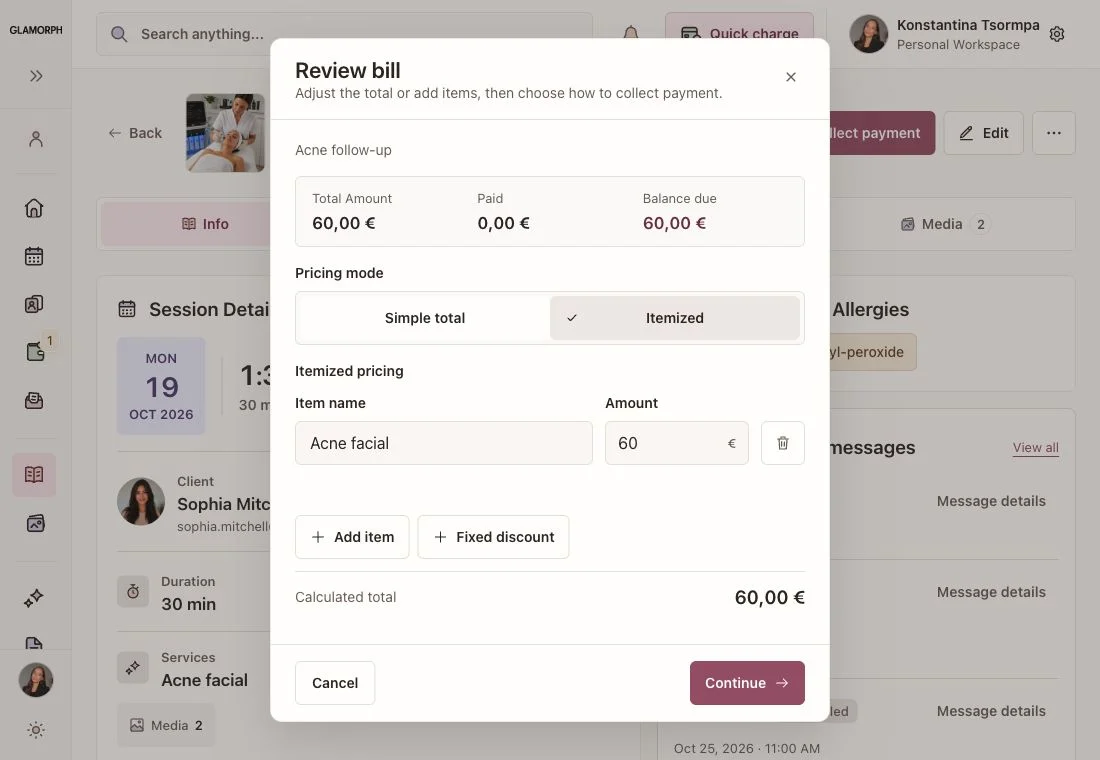
Appointment checkout with services, previous payments and remaining balance in the English Glamorph web app

Save a card for the next visit

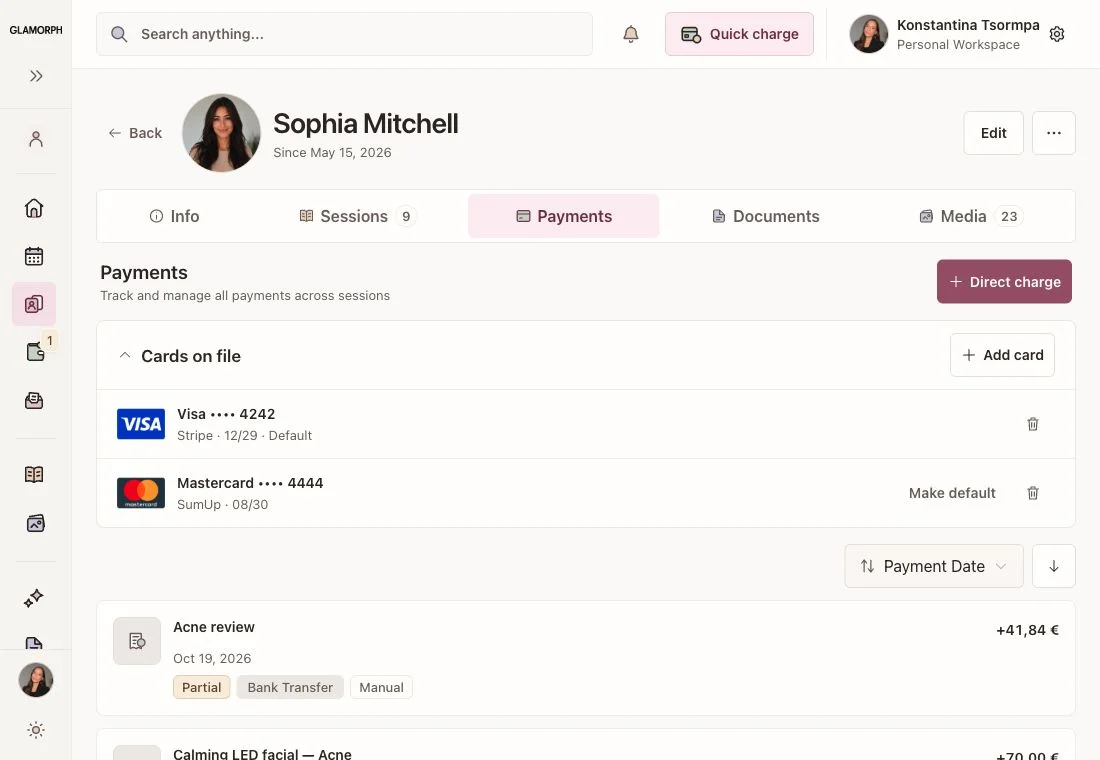
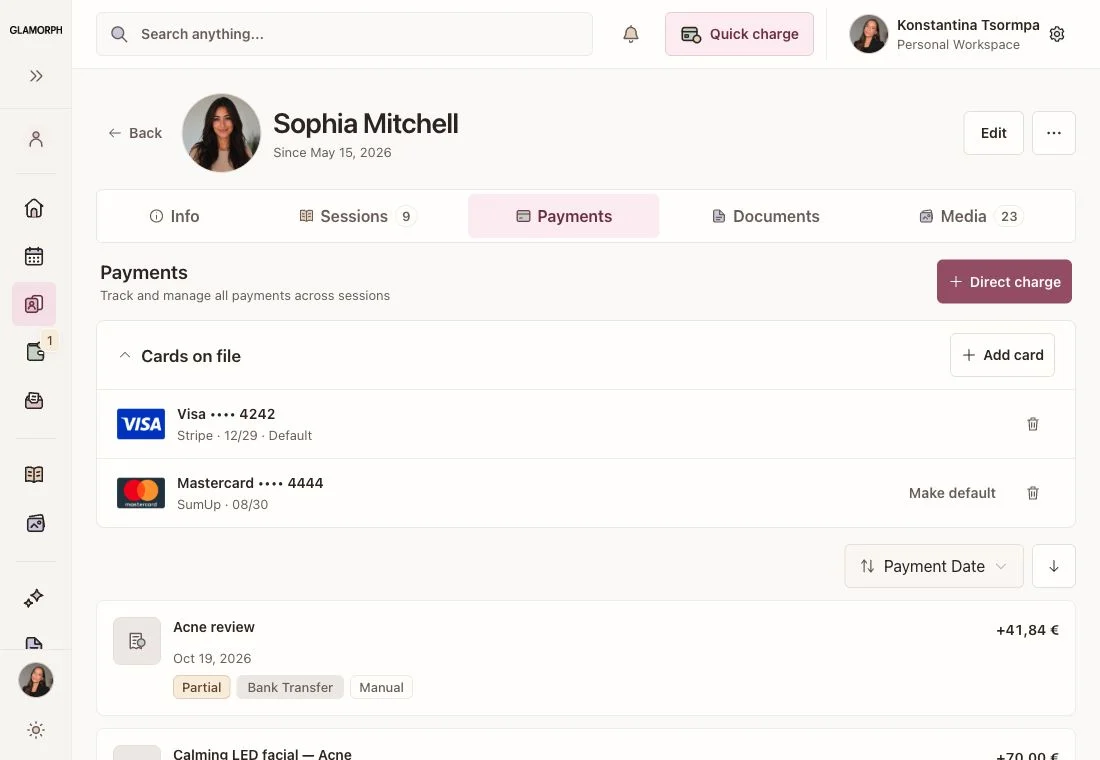
With the client's permission, add a card through the provider's secure form or send a card-saving request. Saved cards appear in the client's Payments tab with their brand, last four digits and provider, plus an expiry date when available. On the web app, select an eligible card for a future payment and review the amount before charging.

Fictional client's saved Visa and Mastercard with masked numbers in the English Glamorph web app

Take the payment the way the appointment needs

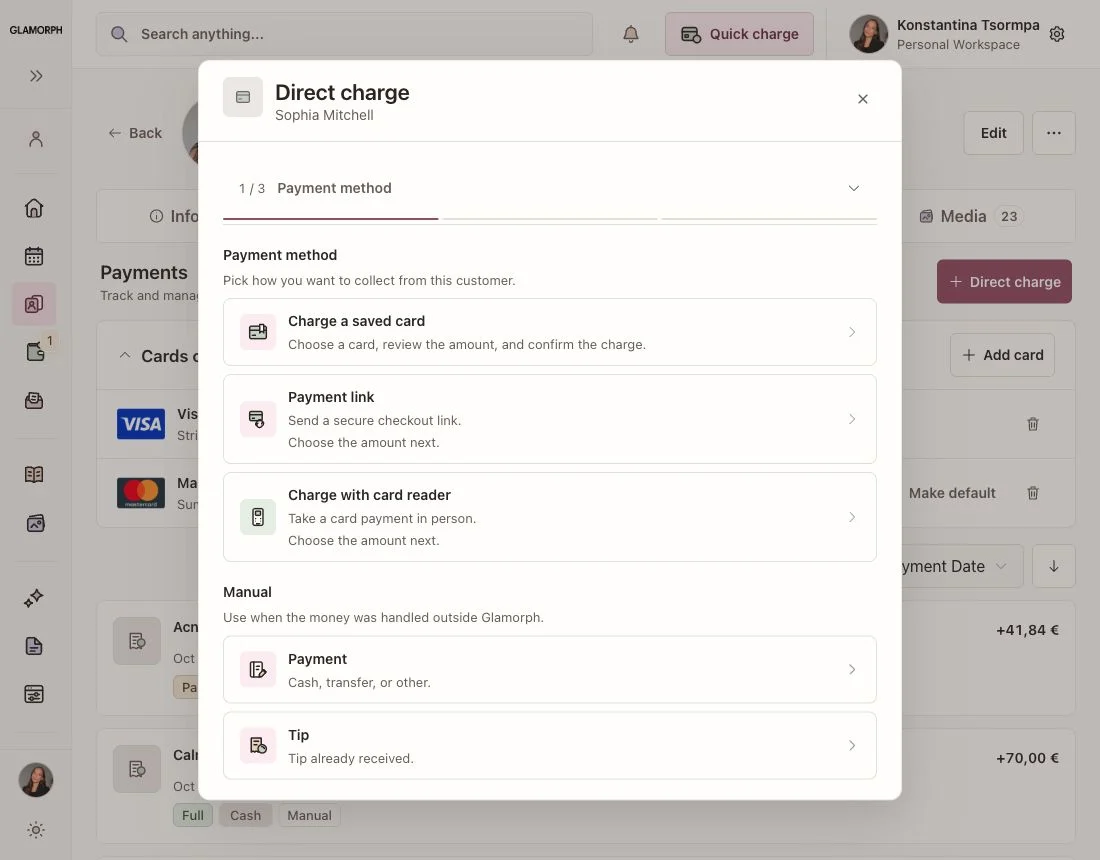
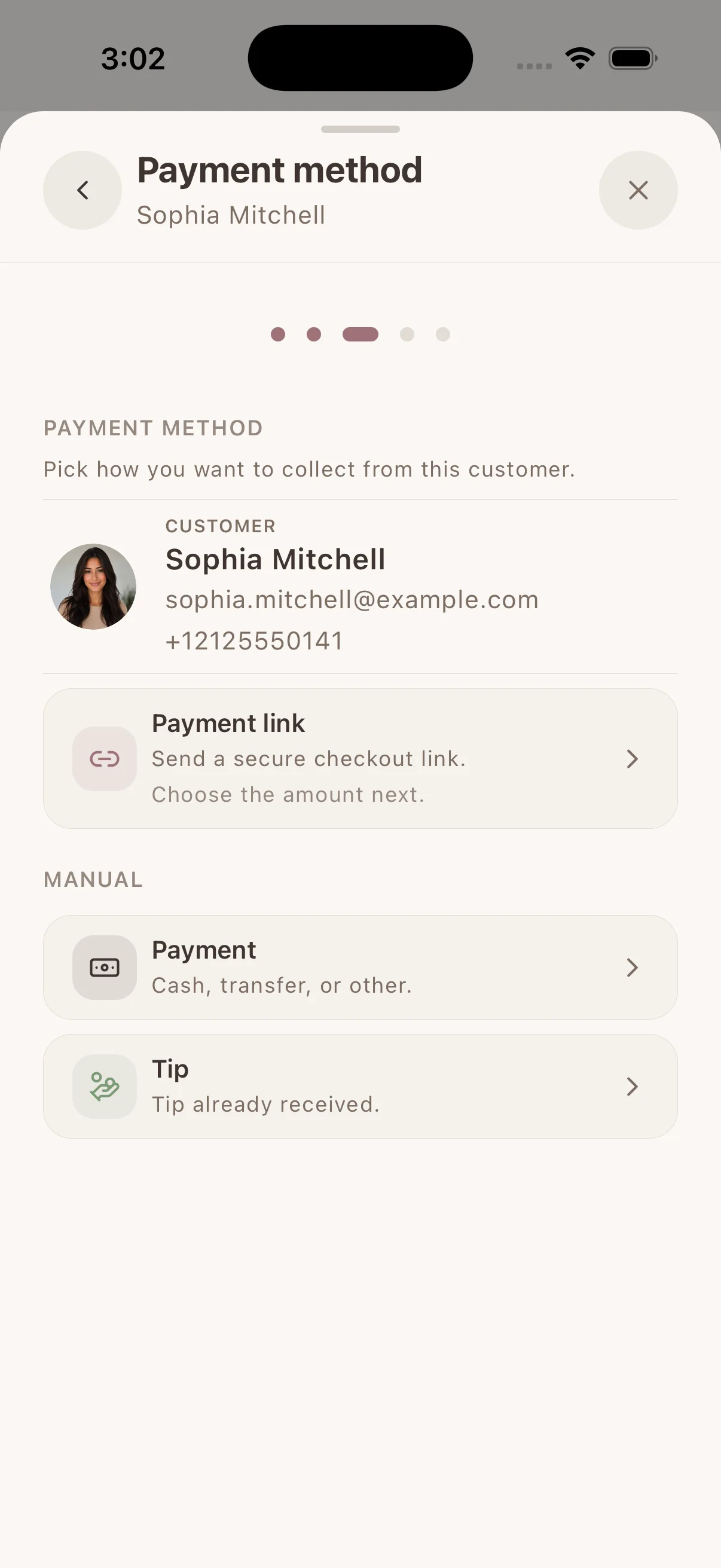
The same client can pay before the visit, at the chair or treatment bed, or after the service without creating a disconnected payment record.

Glamorph payment choices for an appointment, including saved card, payment link, reader and manual payment, in the English web app

Charge a saved card at checkout

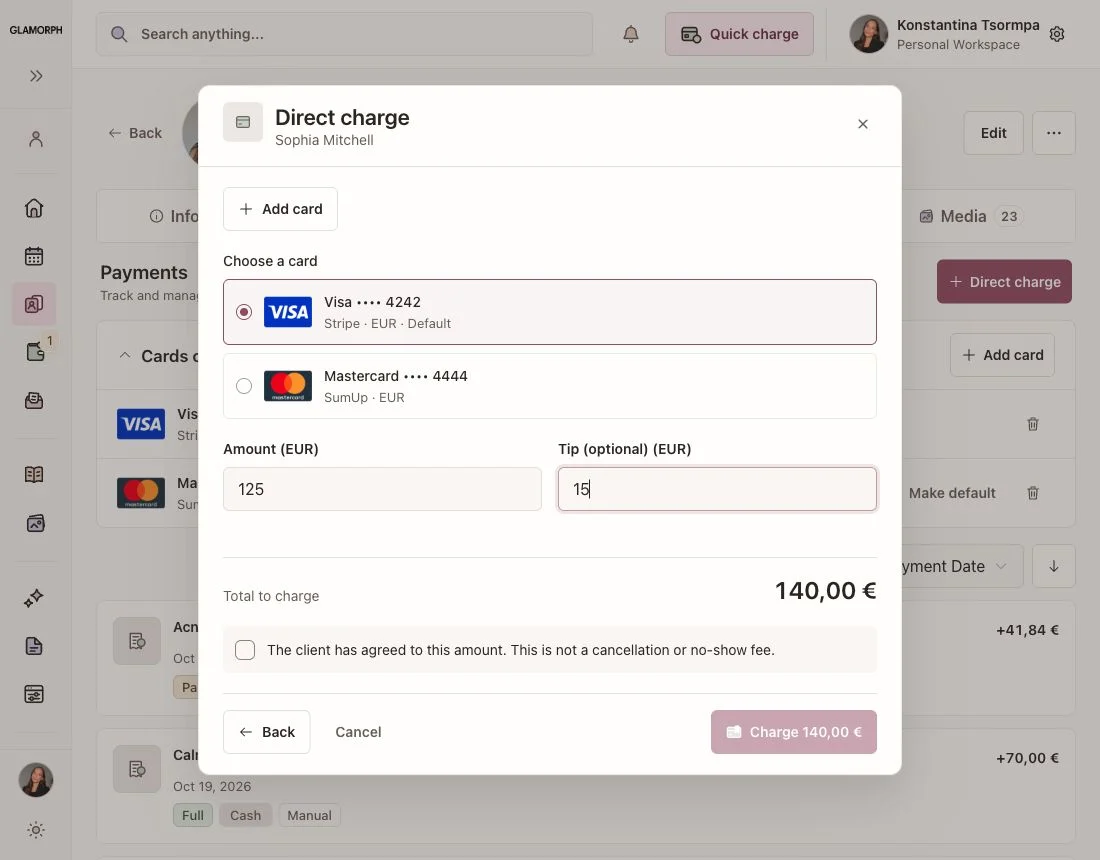
Choose the client's authorized card, review the service amount and optional tip, then confirm the charge. The total stays visible before you collect, and the payment joins the appointment's history.

Saved-card checkout with a fictional Visa selected, a Mastercard alternative and the amount to charge in the English Glamorph web app

Connected terminals

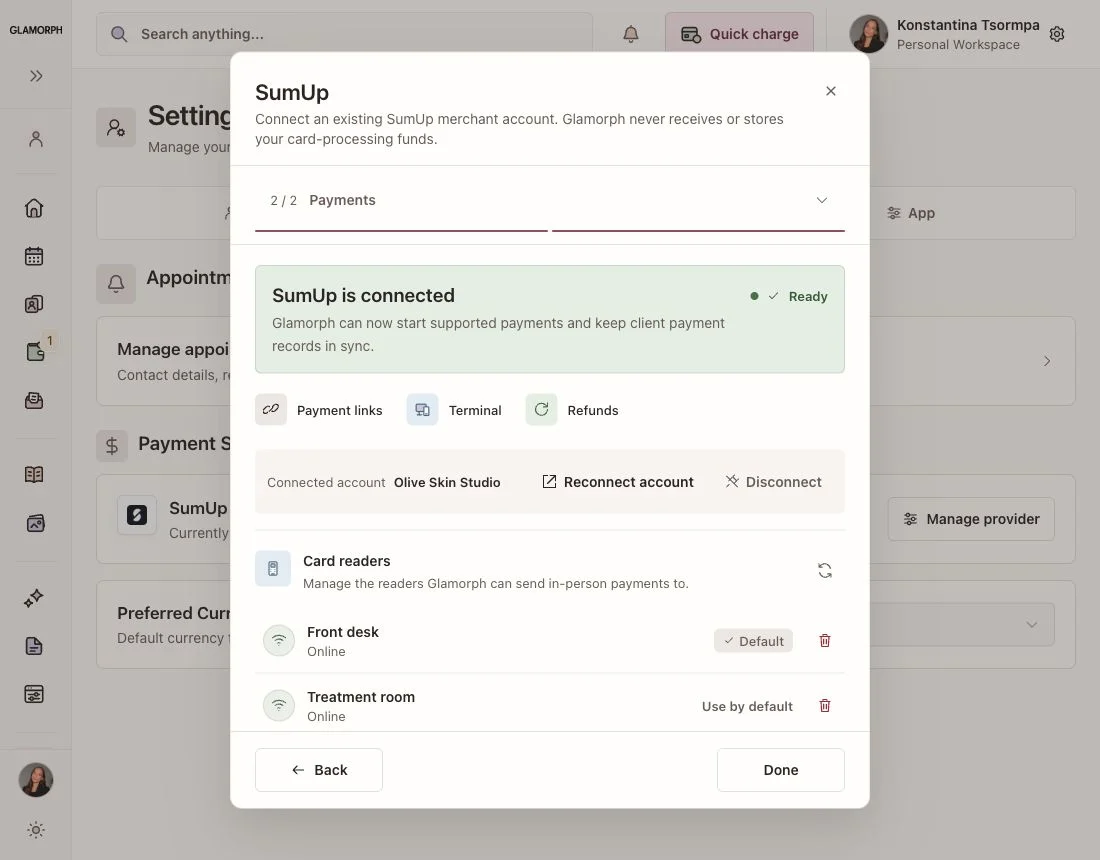
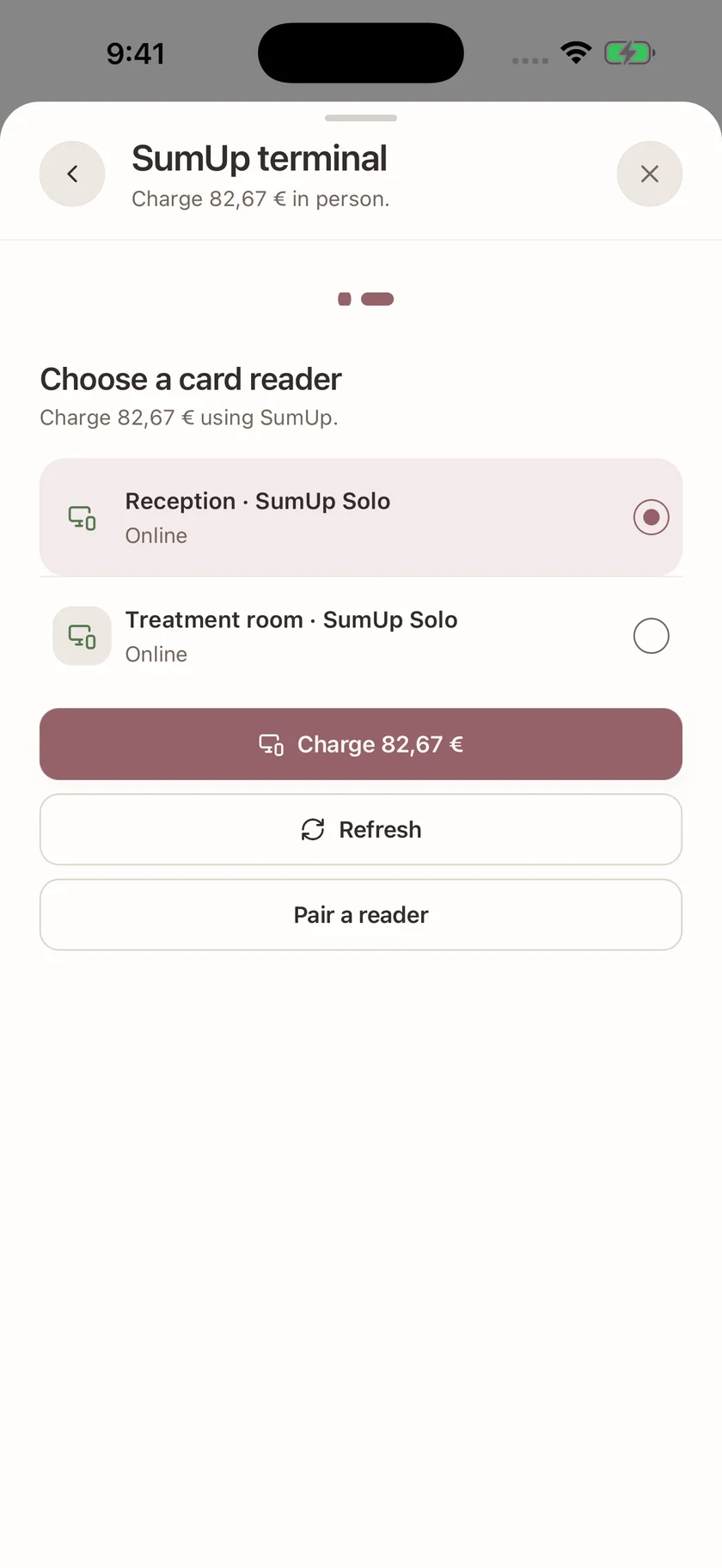
Send the amount from Glamorph to a paired SumUp Solo or Square Terminal and follow the confirmed result in Glamorph.

SumUp card-reader settings and pairing in the English Glamorph web app
Online example SumUp Solo readers and an appointment amount ready to collect in the English Glamorph iPhone app

One payment, one client history

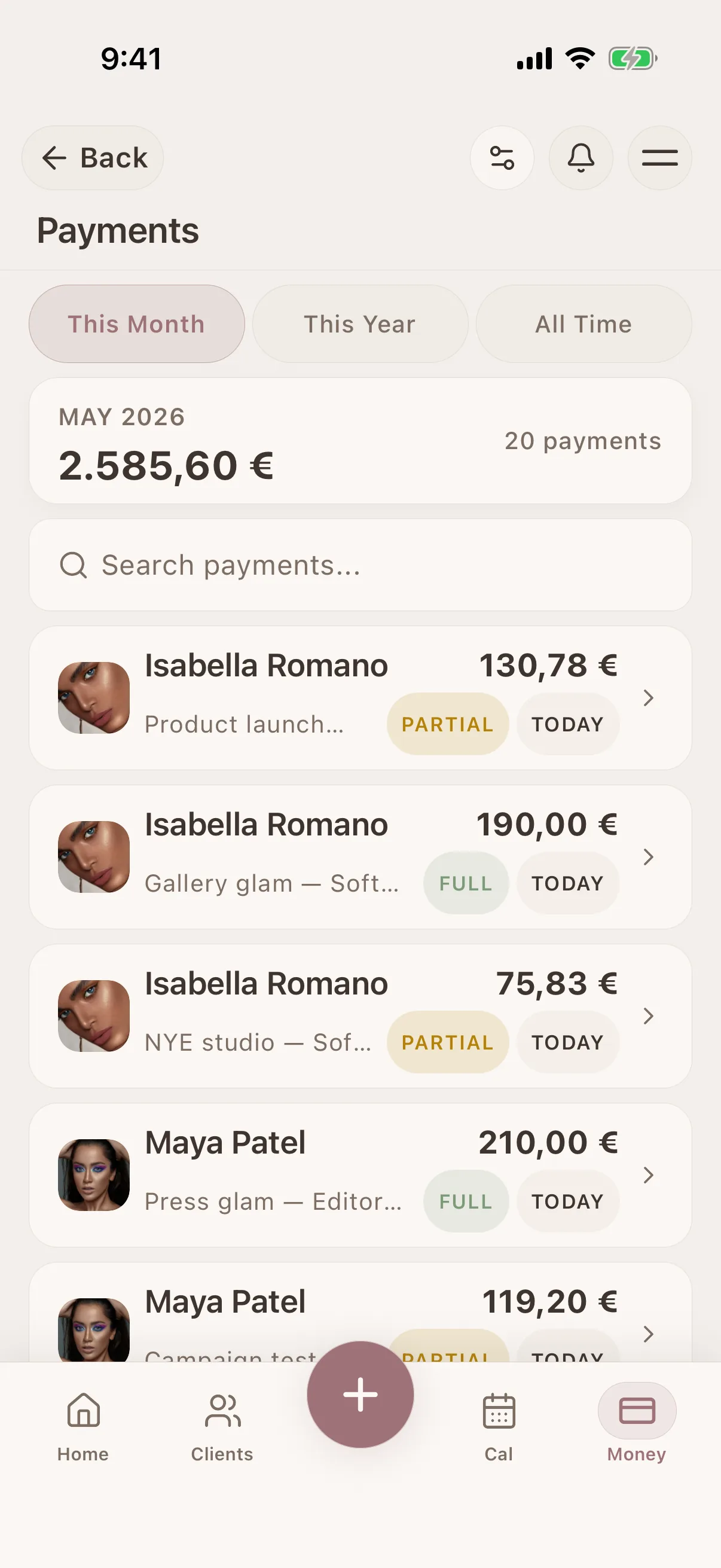
Start from a client or appointment. Glamorph keeps the request, provider, paid amount, remaining balance and refund state connected to that work instead of leaving you to match terminal receipts to names later.

Client payments and appointment balances in the English Glamorph web app

Take the payment the way the appointment needs

The same client can pay before the visit, at the chair or treatment bed, or after the service without creating a disconnected payment record.

Payment links

Send a secure hosted checkout for a deposit, full amount, remaining balance, tip or custom client payment.

Phone and provider-app payments

Use Stripe Tap to Pay on an eligible device, or hand the payment to the SumUp or Square app when the connected account supports that route.

Connected terminals

Send the amount from Glamorph to a paired SumUp Solo or Square Terminal and follow the confirmed result in Glamorph.

Your booking policy, with a separate fee review

Choose whether online bookings require a card and explain your cancellation or no-show terms to the client. When an agreed fee applies, review it and explicitly charge the eligible card. Changing an appointment status does not charge the client.

Deposits and full payment during online booking

For eligible providers, set no upfront payment, a fixed deposit, a percentage or the full service price. Confirmed booking payments join the same calendar and client record.

Refund from the same workflow

When the provider and payment are eligible, issue a full or partial refund from Glamorph and keep its status with the original payment. Provider confirmation remains authoritative.

Revenue and payment history update after confirmation

Provider-confirmed payments enter the Glamorph ledger and client history. You can still record cash, bank transfer or an external card payment manually.

Payment Tracking for Beauty Pros

Track payments per session, see outstanding balances, and send reminders: without complicated invoicing.

Track payments per session

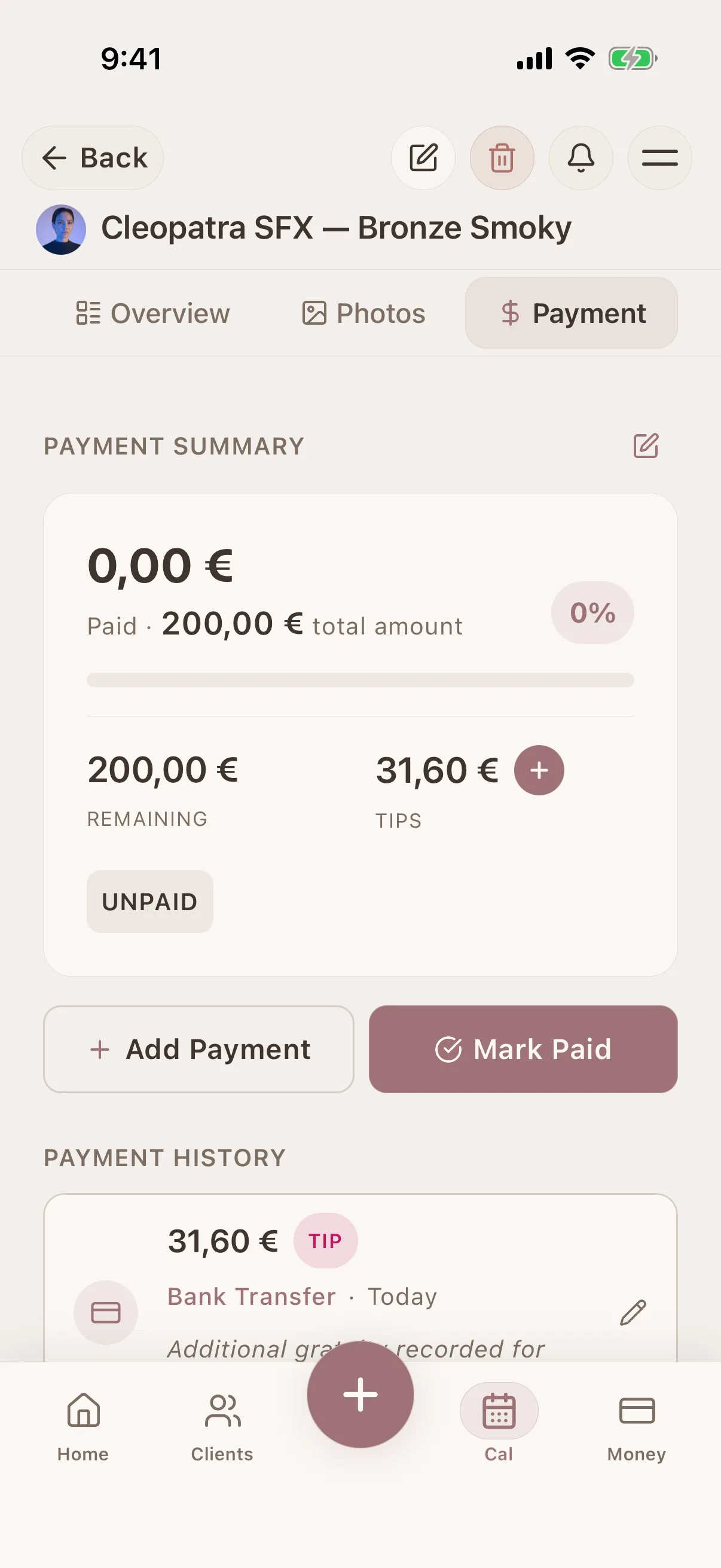
Mark each session as paid, partially paid, or unpaid. See outstanding balances for every client at a glance.

Track payments per session

Payment reminders for you

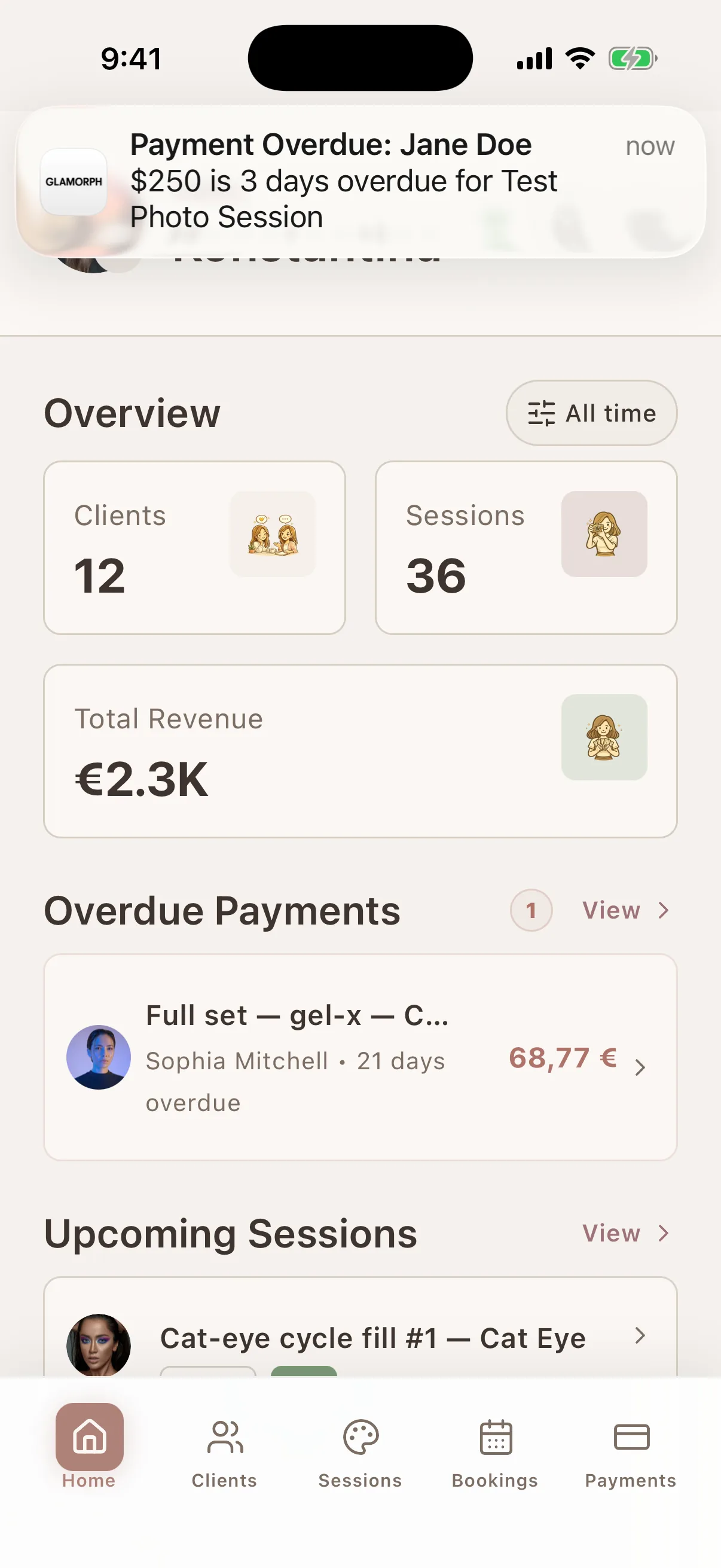
Get notified about outstanding payments via push notifications. Glamorph reminds you: so you don't forget to follow up.

Payment reminder notifications

Your payment method, your rules

Record cash, bank transfers and external card payments manually. Eligible businesses can also connect Stripe, SumUp or Square for supported online or in-person collection.

Your payment method your rules

Income overview

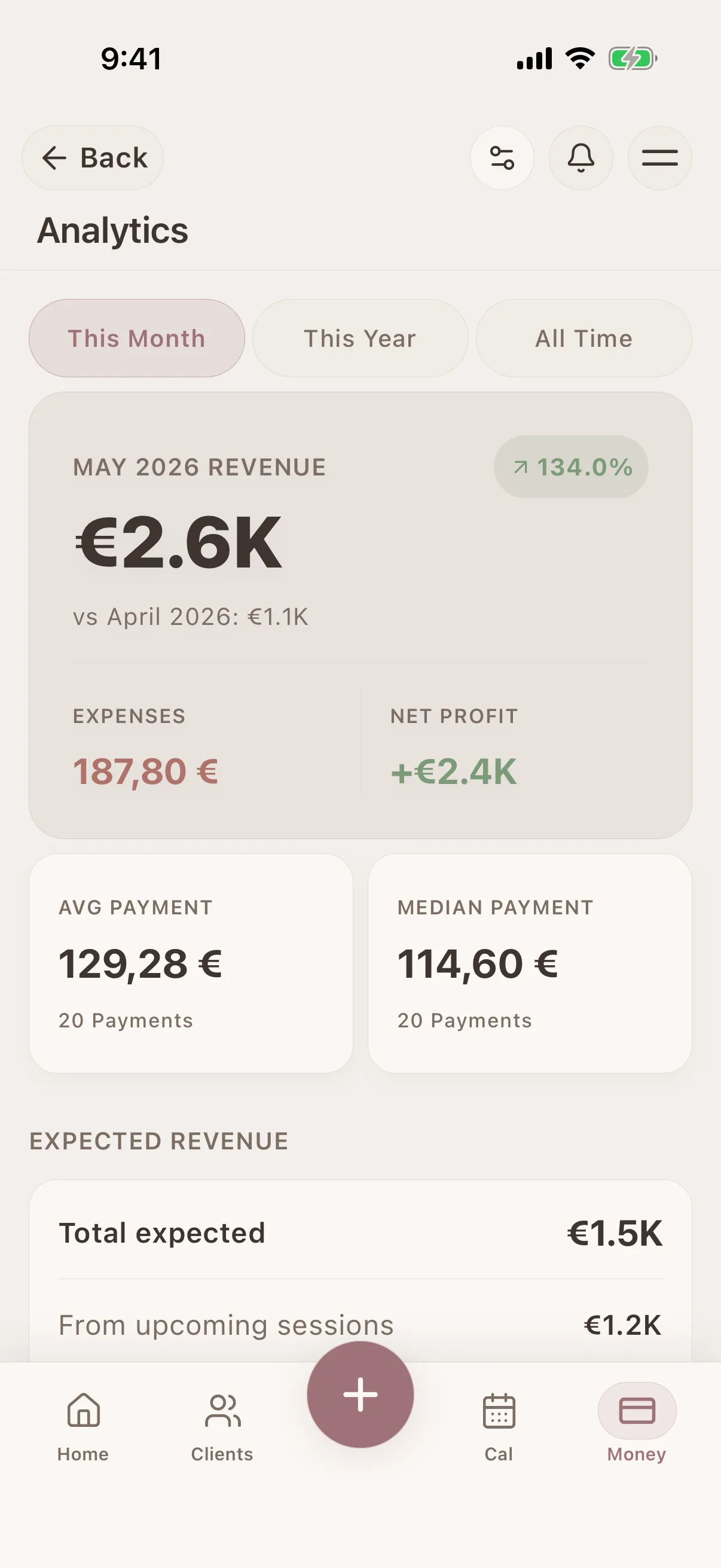
See recorded client-payment revenue by day, week or month and filter by client, service or payment status. This is an operating view, not accounting profit.

Income overview and analytics

Manual payments remain separate

Record money collected outside Glamorph without a Glamorph transaction fee. Integrated collection uses the connected provider's processing terms and any fee shown before collection.

Stripe, SumUp and Square are trademarks of their respective owners. Their appearance identifies supported integrations and does not imply sponsorship or endorsement.

Beauty payment processing questions

Can I connect my existing payment account?

Glamorph offers Stripe setup and connections to eligible SumUp and Square merchant accounts. The available providers and methods depend on your business country and account.

Can I use a card terminal or my phone?

Yes. Use a connected SumUp Solo or Square Terminal, or collect through a supported SumUp or Square app. Stripe Tap to Pay is available on eligible phones. Your country, account and device determine which options you can use.

Can I refund a payment?

Yes, when the provider and payment support it. Request a full or partial refund from Glamorph and follow its status alongside the original payment.

Can I save a client's card and use it at the next visit?

Yes, in the web app with an eligible Stripe, SumUp or Square connection and the client's explicit permission. The provider handles the card details. Each card stays with its original provider account, and every later charge requires a separate action. Card saving is optional.

Which cards can I save?

You can save cards accepted by your connected payment provider. Supported brands and card types depend on the provider, merchant country and account. Glamorph displays the card details the provider returns. The Visa and Mastercard shown here are examples.

Does Glamorph store the full card number?

Card entry and verification use the payment provider's hosted checkout or card form. Glamorph keeps the provider's saved-card reference and display details such as the brand and last four digits. It does not store the full card number or security code.

What fees apply to payments?

Your Glamorph subscription, any Glamorph application fee and your provider's processing fees are separate. Review any application fee before confirming collection and check your provider agreement for processing costs. Manual payment records have no Glamorph transaction fee.

Are cancellation or no-show fees charged automatically?

No. You can set an optional booking card requirement and explain agreed fee terms to the client. Staff must review the fee and explicitly confirm a charge to an eligible saved card. Changing the appointment status does not charge it. The provider may ask the client for further authentication.

Keep the payment with the service that earned it

Collect through an eligible provider or record an external payment, then see the result beside the client and appointment.

Starting from €11.99 per month · Free trial included

Appointment checkout with services, previous payments and remaining balance in the English Glamorph web app
Online example SumUp Solo readers and an appointment amount ready to collect in the English Glamorph iPhone app

Trusted by beauty professionals across

GreeceUSAUKAustraliaCyprusRomaniaBulgaria+ and more